MIDI Setup Guide
How to route MIDI from an Augmatic plugins into a drum instrument, in every supported DAW.
Introduction
Augmatic GRE and GRE Lite plugins are MIDI effects — they generate MIDI notes and produce no sound themselves. You route their MIDI output into a drum instrument (Drum Rack, Battery, FPC, XO, or any sampler or synth that accepts MIDI), and that instrument produces the sound.
"Plugin" in this Guide means the product you installed — Augmatic GRE or Augmatic GRE Lite. The routing is identical in every case.
Back to User Manuals: Augmatic GRE | Augmatic GRE Lite
Select Your DAW
Ableton Live (Win/Mac)
In Ableton Live, use VST only — in Live an AU plugin cannot send MIDI to another track.
Routing MIDI output to an instrument always requires two separate tracks. This is standard behavior in Ableton Live and not unique to the Augmatic plugin; all VST3 MIDI plugins operate this way:
- Load the Augmatic plugin on MIDI Track 1.
- Load a drum instrument on MIDI Track 2, e.g. Drum Rack.
- On Track 2, set MIDI From to 1-[the Augmatic plugin].
- In the menu below, change Post FX to [the Augmatic plugin].
- Set Track 2 Monitor to In.
Screeshots below show Augmatic GRE which works exactly the same.
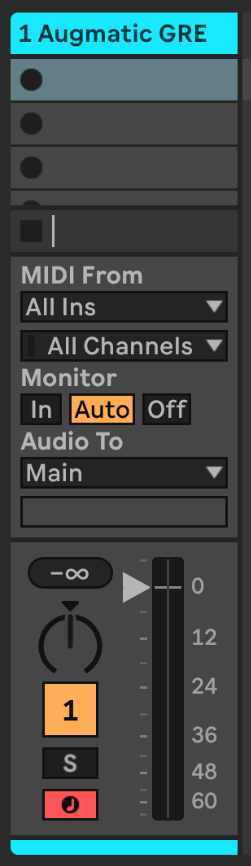 1. Load the Augmatic plugin on MIDI Track 1 .
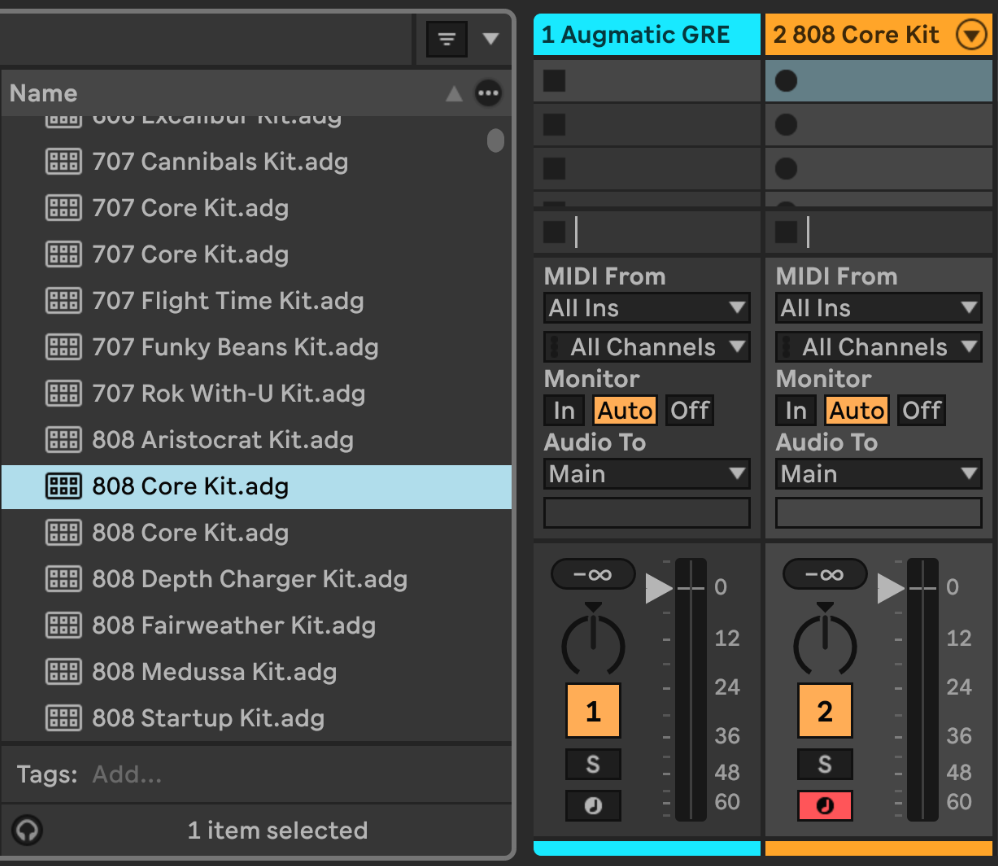 2. Load a drum instrument on MIDI Track 2 , e.g. Drum Rack.
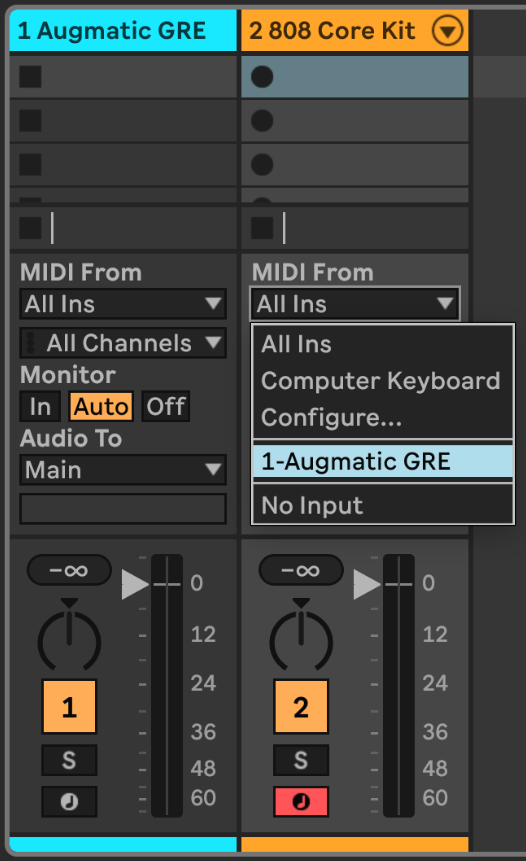 3. On Track 2, set MIDI From to 1-[the Augmatic plugin] .
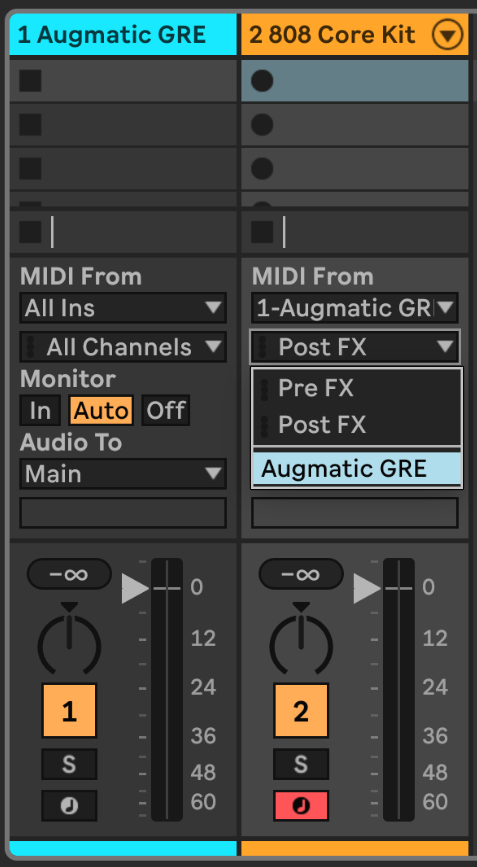 4. In the menu below, change Post FX to [the Augmatic plugin] .
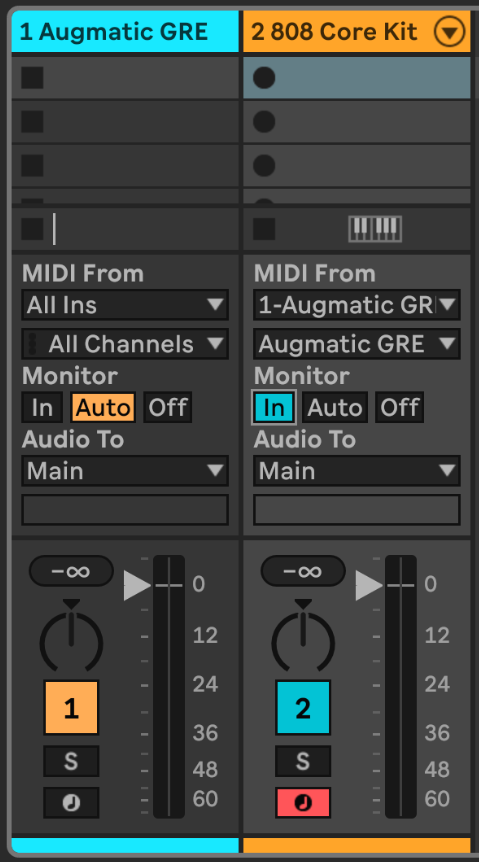 5. Set Track 2 Monitor to In .
Resources
- Ableton Official — Video: Accessing the MIDI output of a VST plugin
- Plugin Boutique — Video: External Instrument Routing Guide: Ableton Live
- Plugin Boutique — Video: Scaler 2 | VSTi Routing in Ableton Live | Quick Tip Tutorial.
- Music Rigs — MIDI Effect Plugin Routing in Ableton Live
- CodeFN42 — FAQ: MIDI Routing in Ableton Live
- Scaler Music — PDF: Scaler 3 MIDI Output DAW Routing Guide — page 5
Audiobus (iPad/iPhone)
- Select the MIDI section in Audiobus.
- Open the INPUT or EFFECT slot and select the Audio Units section.
- Choose the Augmatic plugin.
- Insert a MIDI receiver (your target instrument) in the OUTPUT slot so the Augmatic plugin's processed MIDI has somewhere to go.
AUM (iPad/iPhone)
- Create a MIDI channel and open the plugins list at the top.
- Choose the Audio Unit MIDI processor section and select the Augmatic plugin.
- Create an audio channel with an instrument, then open its MIDI settings panel.
- Open MIDI Routing from the top menu, select the Augmatic plugin to route its processed MIDI output to the instrument's MIDI input.
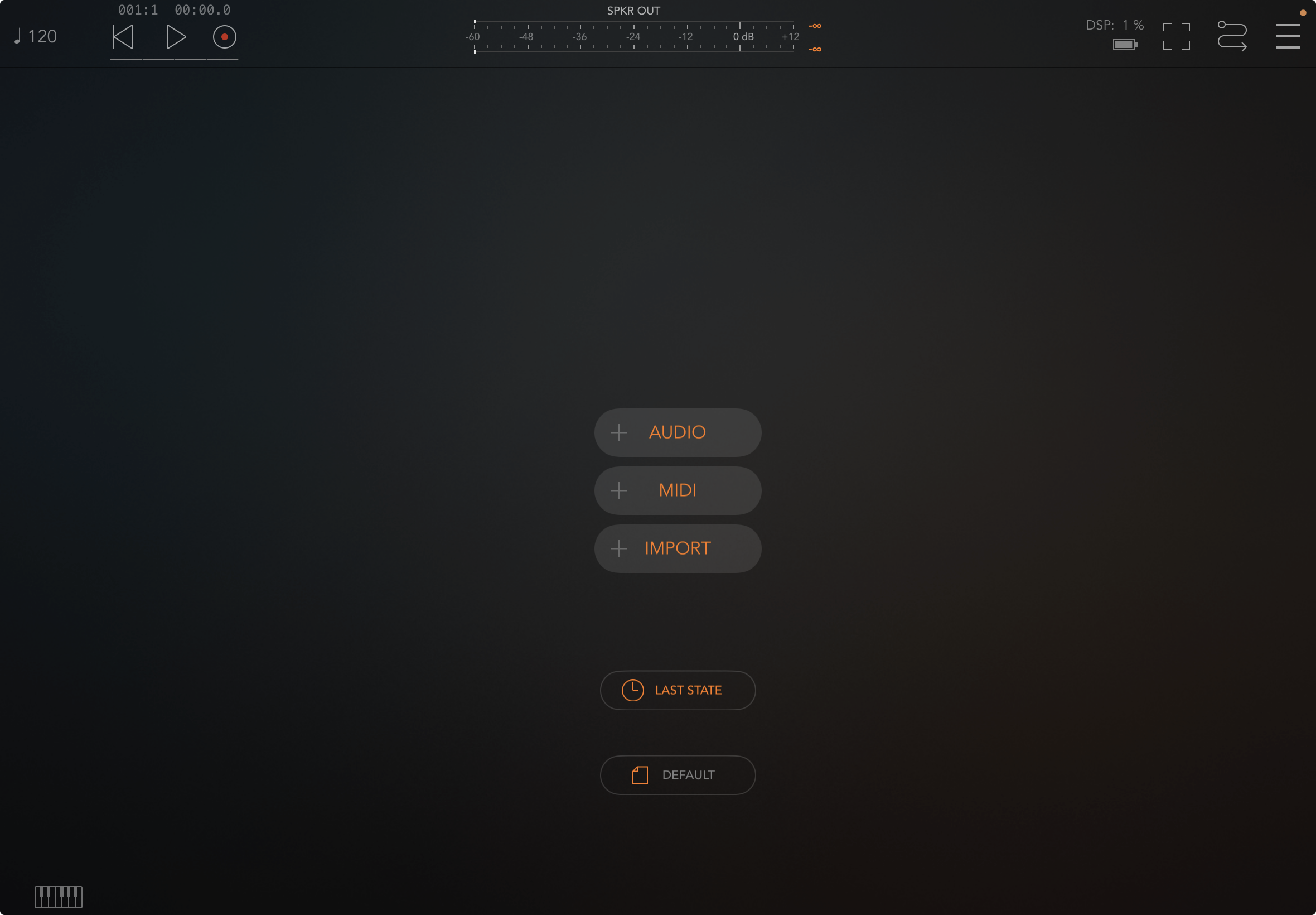 1. Create a MIDI channel and open the plugins list at the top.
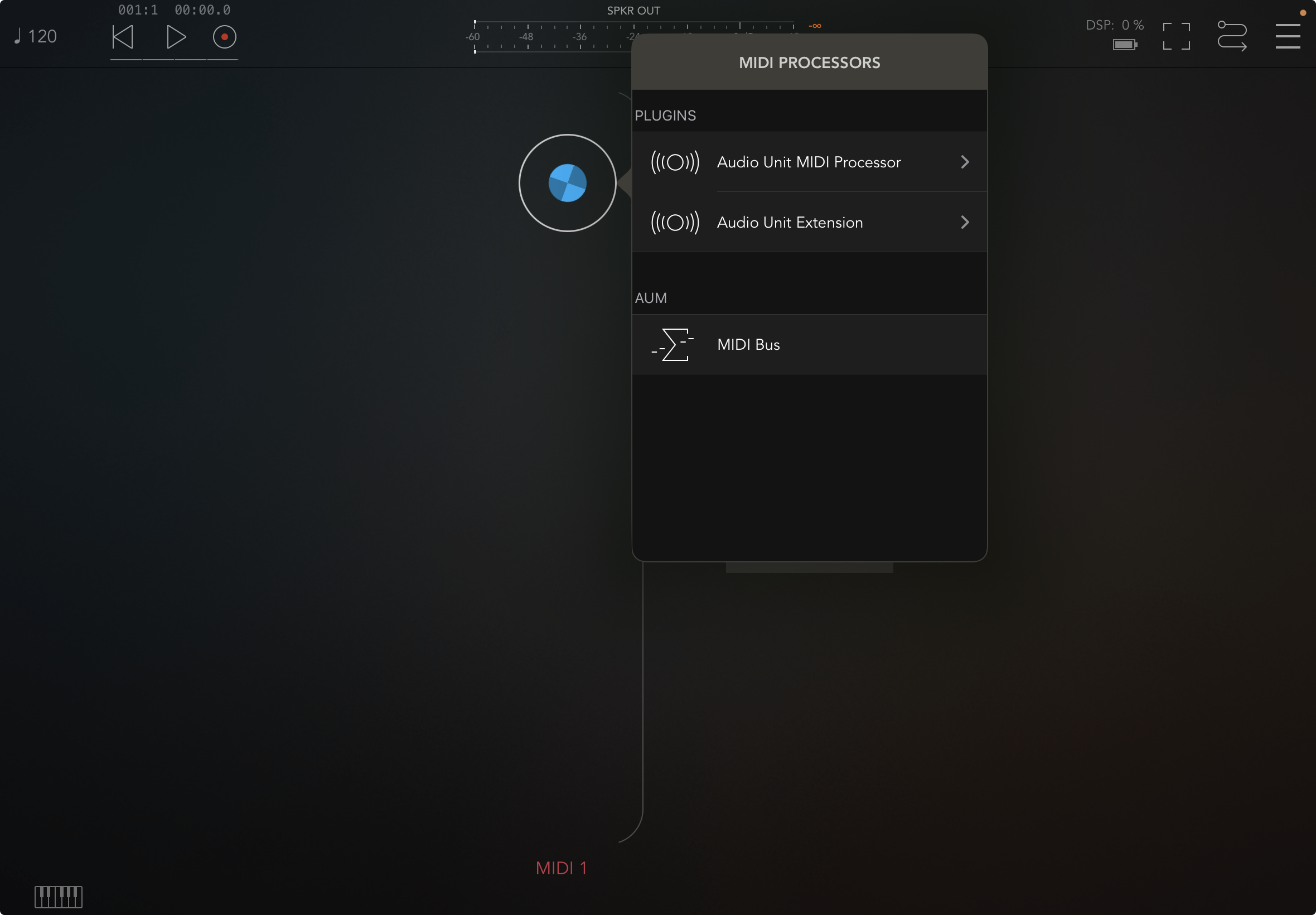 1. Create a MIDI channel and open the plugins list at the top .
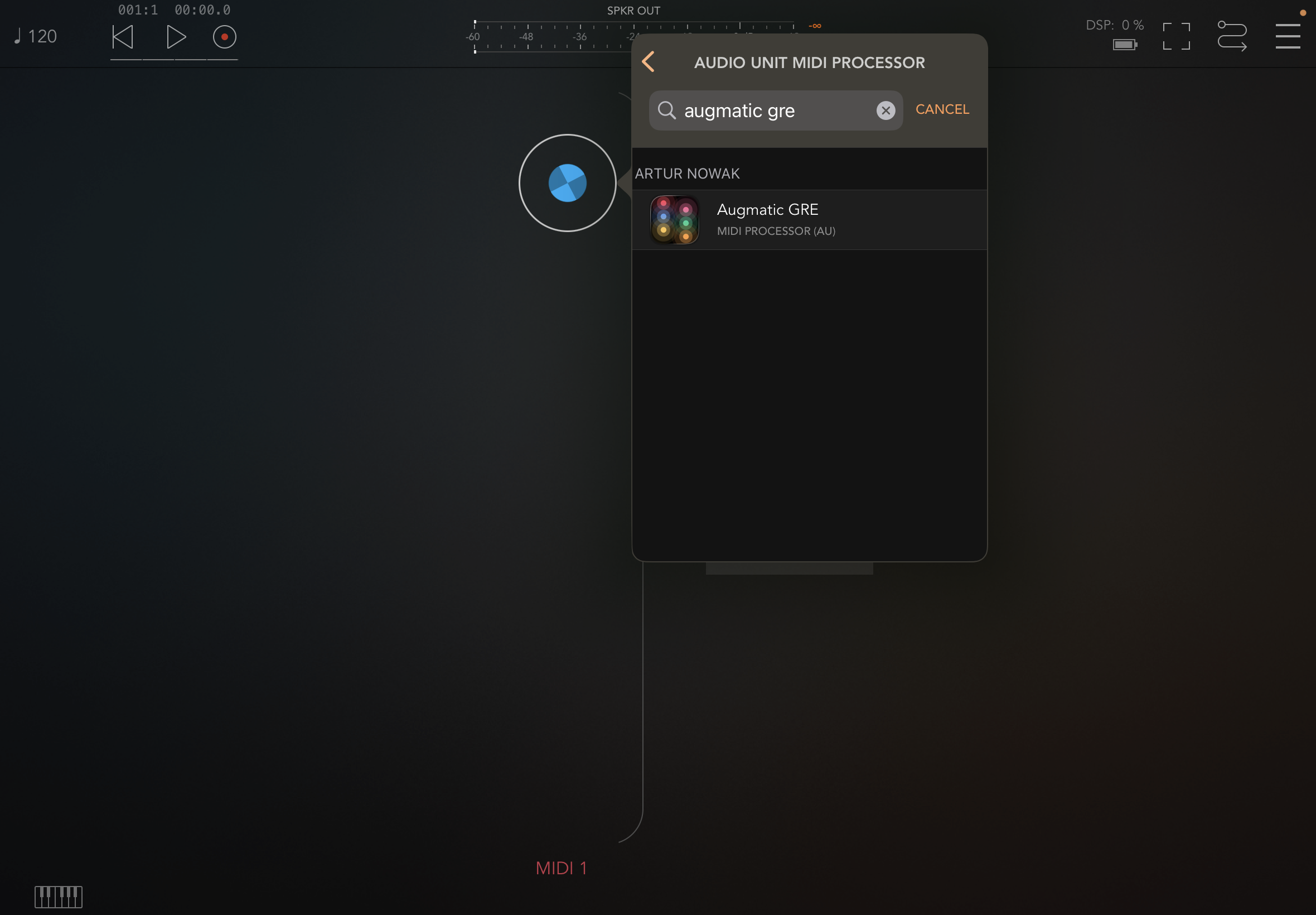 2. Choose the Audio Unit MIDI processor section and select the Augmatic plugin .
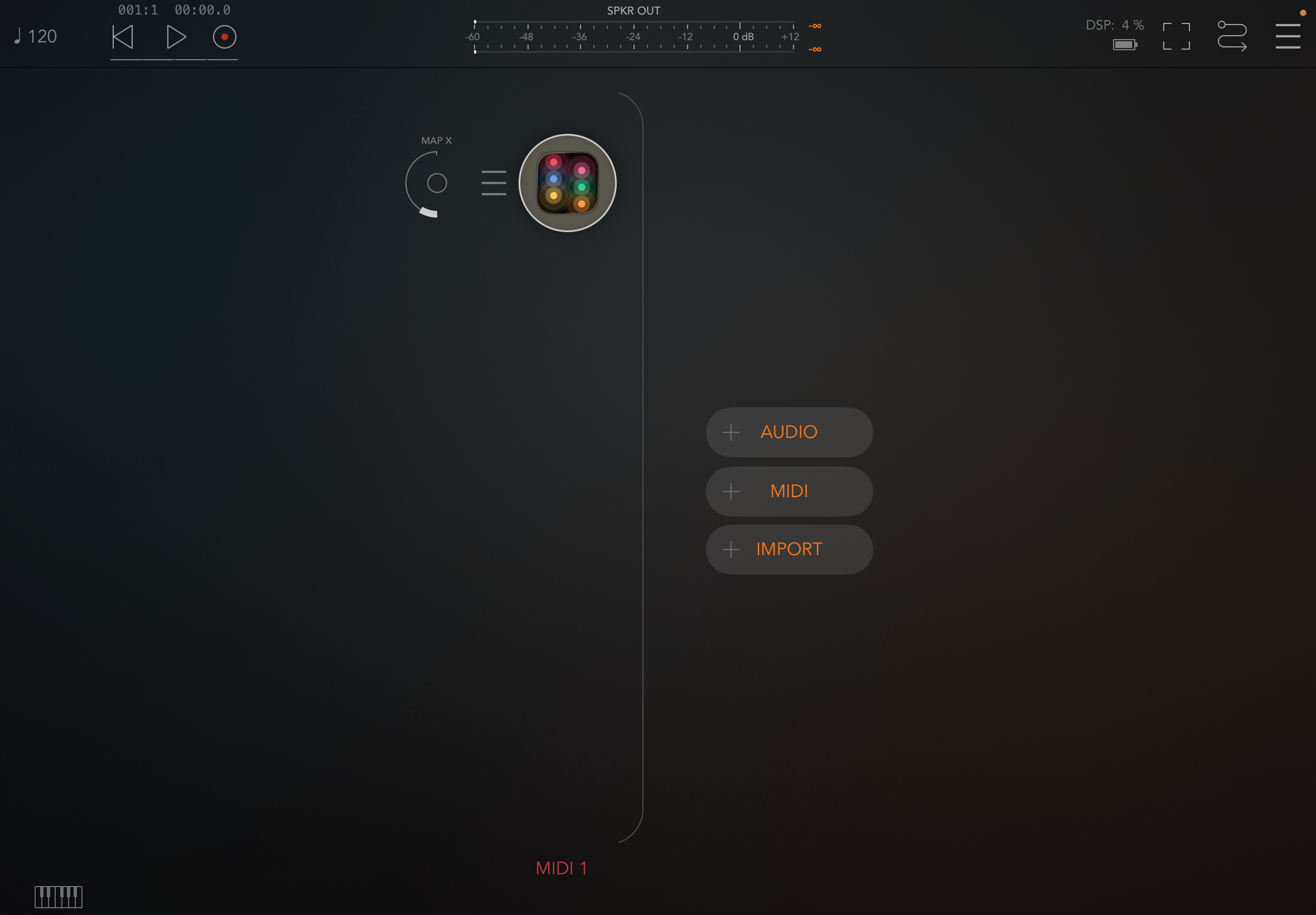 3. Create an audio channel with a drum instrument.
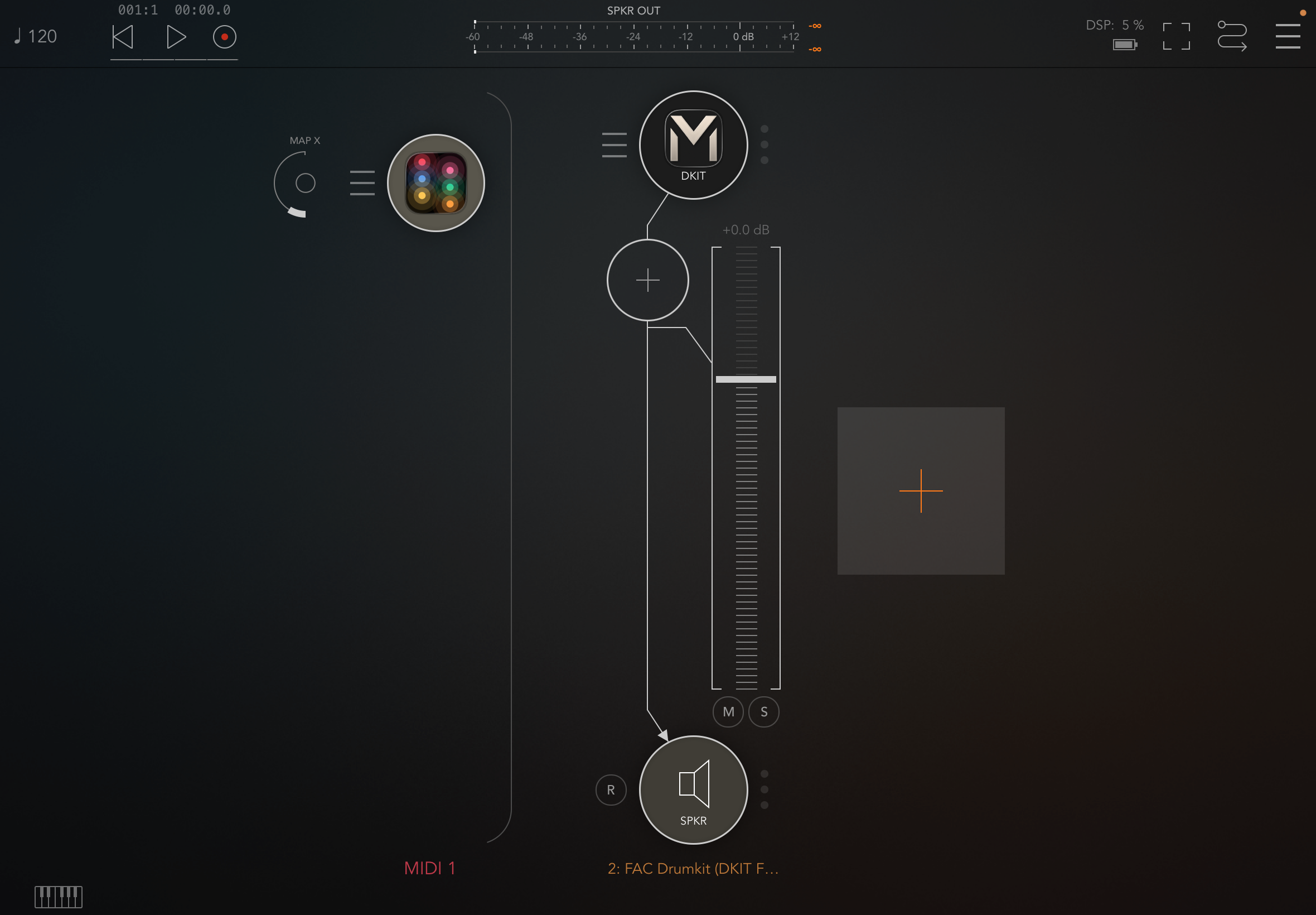 3. Create an audio channel with a drum instrument .
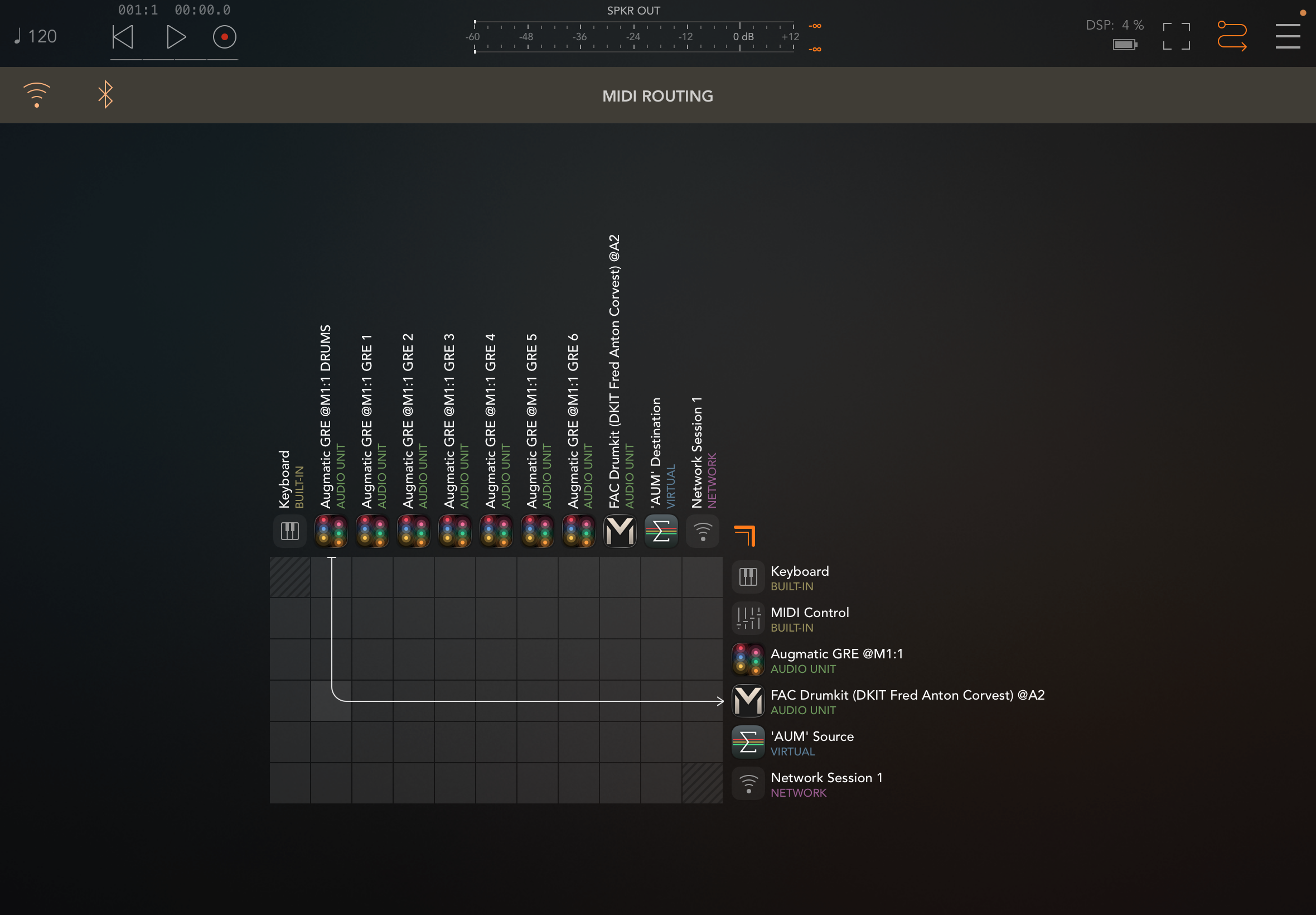 4. Open MIDI Routing from the top menu, select the Augmatic plugin to route its processed MIDI output to the instrument's MIDI input.
BeatMaker (iPad)
- On the bank where you want the Augmatic plugin, select the MIDI effects icon from the left panel.
- Select Add MIDI Effect.
- Load the Augmatic plugin from the MIDI effects list.
Bitwig Studio (Win/Mac)
Method A — Same track (simplest):
- Place the Augmatic plugin before the drum instrument in the same track's device chain.
Method B — Notes to Tracks:
- On the Augmatic plugin track, set the track output to Notes to Tracks → Tracks → [drum track].
Method C — Note Receiver:
- On the drum track, insert a Note Receiver device (Routing devices in the browser).
- Set its source to the Augmatic plugin track. Best when several tracks tap one source.
This will play your drum patterns.
Resources
- Bitwig Official — Routing Devices
- Plugin Boutique — Video: External Instrument Routing Guide: Bitwig Studio 2
- CodeFN42 — FAQ: MIDI Routing in Bitwig Studio
- Polarity — Video: Combine Bitwig's Drum Machine & 3rd Party VSTs
- Polarity — Video: Sending Signals Across Channels
- Scaler Music — PDF: Scaler 3 MIDI Output DAW Routing Guide — page 10
Cubase (Win/Mac)
- Load the Augmatic plugin on Instrument Track 1.
- Load the drum instrument on Instrument Track 2.
- On Track 2, open the Inspector → set Input Routing to the Augmatic plugin's MIDI output (e.g. "[the Augmatic plugin] - MIDI Output").
- Enable Monitor on Track 2; arm Track 1.
- Confirm MIDI Thru Active is on in Preferences → MIDI .
This will play your drum patterns.
Resources
- Plugin Boutique — External Instrument Routing Guide: Cubase 9
- CodeFN42 — FAQ: MIDI Routing in Cubase
- VI-Control — Cubase - VST MIDI Output Routing?
- Steinberg Forums — Routing in Cubase - Synth/Cthulhu/Scaler?
- Ask.Audio — 5 Pro Tips For Audio And MIDI Routing In Cubase.
- Scaler Music — PDF: Scaler 3 MIDI Output DAW Routing Guide page 8.
Cubasis (iPad/iPhone)
- On the track where you want the Augmatic plugin, select MIDI effects from the left panel.
- Choose the Augmatic plugin from the list.
- (Optional) To record the processed MIDI output instead of the notes you play in, tap the Rec to track button at the top right of the plugin window.
FL Studio (Win/Mac)
Method A — Patcher:
- Load Patcher as a channel instrument.
- Inside Patcher, add the Augmatic plugin and the target drum instrument.
- Drag the turquoise (MIDI) wire from the Augmatic plugin's output to the instrument's input.
Method B — Wrapper port routing (third-party VSTs only):
- In the Augmatic plugin's wrapper (cog icon), set MIDI Output Port to a number (e.g. 1).
- On the receiving drum VST, set MIDI Input Port to the same number.
Resources
- Scaler Music — PDF: Scaler 3 MIDI Output DAW Routing Guide — FL Studio section, page 9; most comprehensive (2025).
- Plugin Boutique — External Instrument Routing Guide: FL Studio — Patcher method; recommends VST2.
- Image-Line — Video: Patcher Tutorial — how the MIDI/audio/parameter wires work.
- CodeFN42 — FAQ: MIDI Routing in FL Studio — wrapper-port method with screenshots.
- Image-Line Forum — Routing MIDI From Plugin to Internal Instrument — confirms Patcher is required for native plugins.
Drambo (iPad/iPhone)
In Drambo you wire MIDI the same way you wire audio — through MIDI ports, not a special menu. Place the Augmatic plugin between a MIDI source and your instrument track.
- Create a MIDI track for the Augmatic plugin: tap + Track → MIDI Track (not Audio).
- On that track, tap + Module, open the MIDI category and add the Augmatic plugin (its AUv3). It appears in the signal chain.
- At the end of the chain, add a MIDI To module (MIDI → Output) and set its Destination Track to your instrument track.
- The instrument track auto-receives when you use MIDI To; otherwise set that track's Input to the Augmatic plugin track.
Signal flow: MIDI In → Augmatic plugin → MIDI To → Instrument Track. You can chain more MIDI modules after it, or add several MIDI To modules to drive multiple instrument tracks.
Logic Pro (Mac)
Logic Pro loads the Audio Unit v2 as a MIDI effect on the instrument's own track.
- On the track where you want the Augmatic plugin, select MIDI FX from the channel strip.
- Choose the Augmatic plugin from the list of Audio Units plugins.
- (Optional) Since Logic 10.7.5, to record the MIDI output processed by the Augmatic plugin instead of the notes you play in, select Record MIDI to Track Here below the list of MIDI effects.
On Mac, this will play your drum patterns.
Logic Pro (iPad/iPhone)
After opening the project, make sure all tracks are armed for recording.
- Create New Project → Tracks → Create New Track → MIDI → ... → Drum Kit Designer.
- On the same track, select + MIDI FX, on the left of Drum Kit Designer.
- In Search on top, type the plugin name (for example Augmatic GRE) and select it.
- Open the Augmatic plugin and start playing.
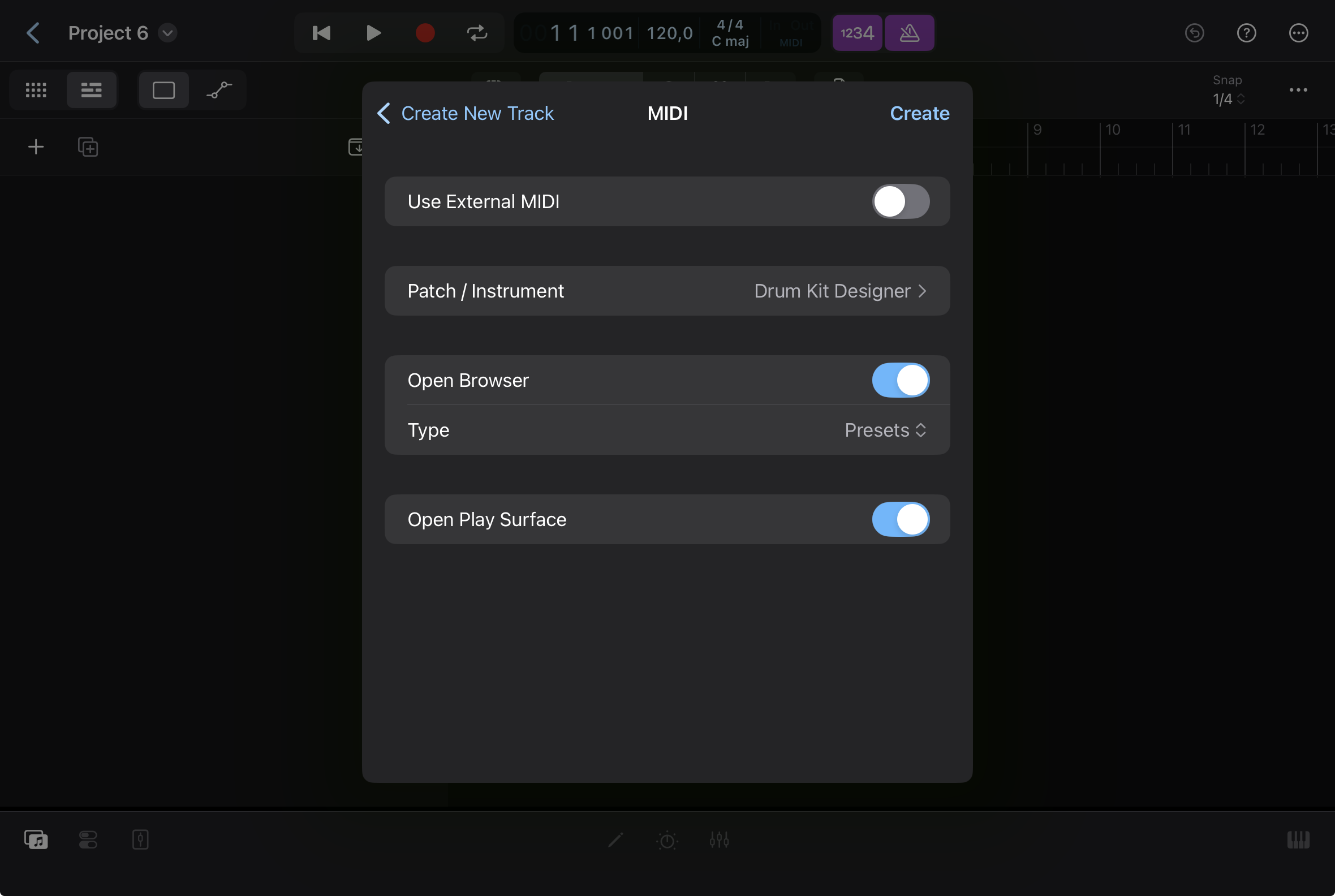 1. Create New Project → Tracks → Create New Track → MIDI → ... → Drum Kit Designer .
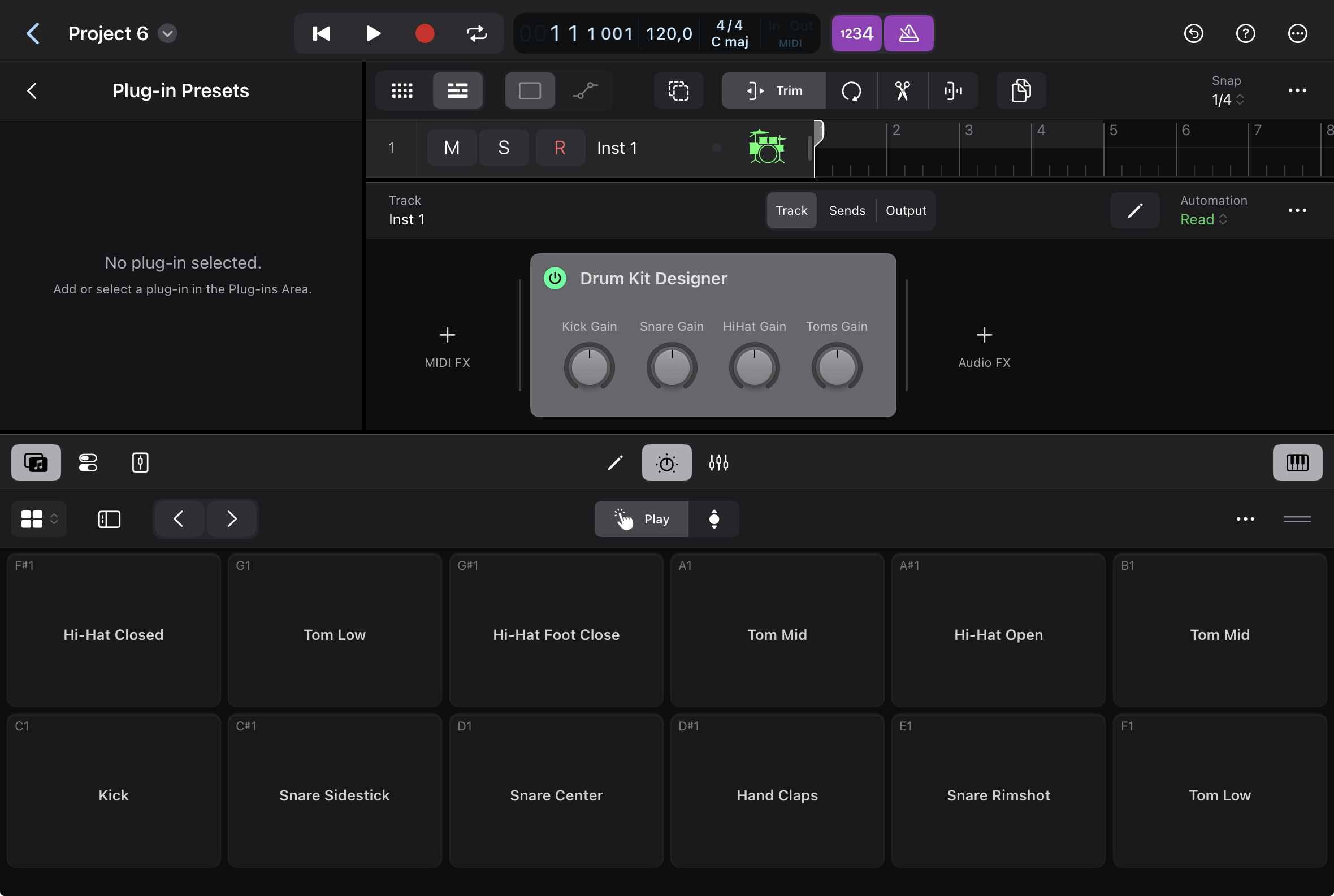 2. On the same track, select + MIDI FX , on the left of Drum Kit Designer.
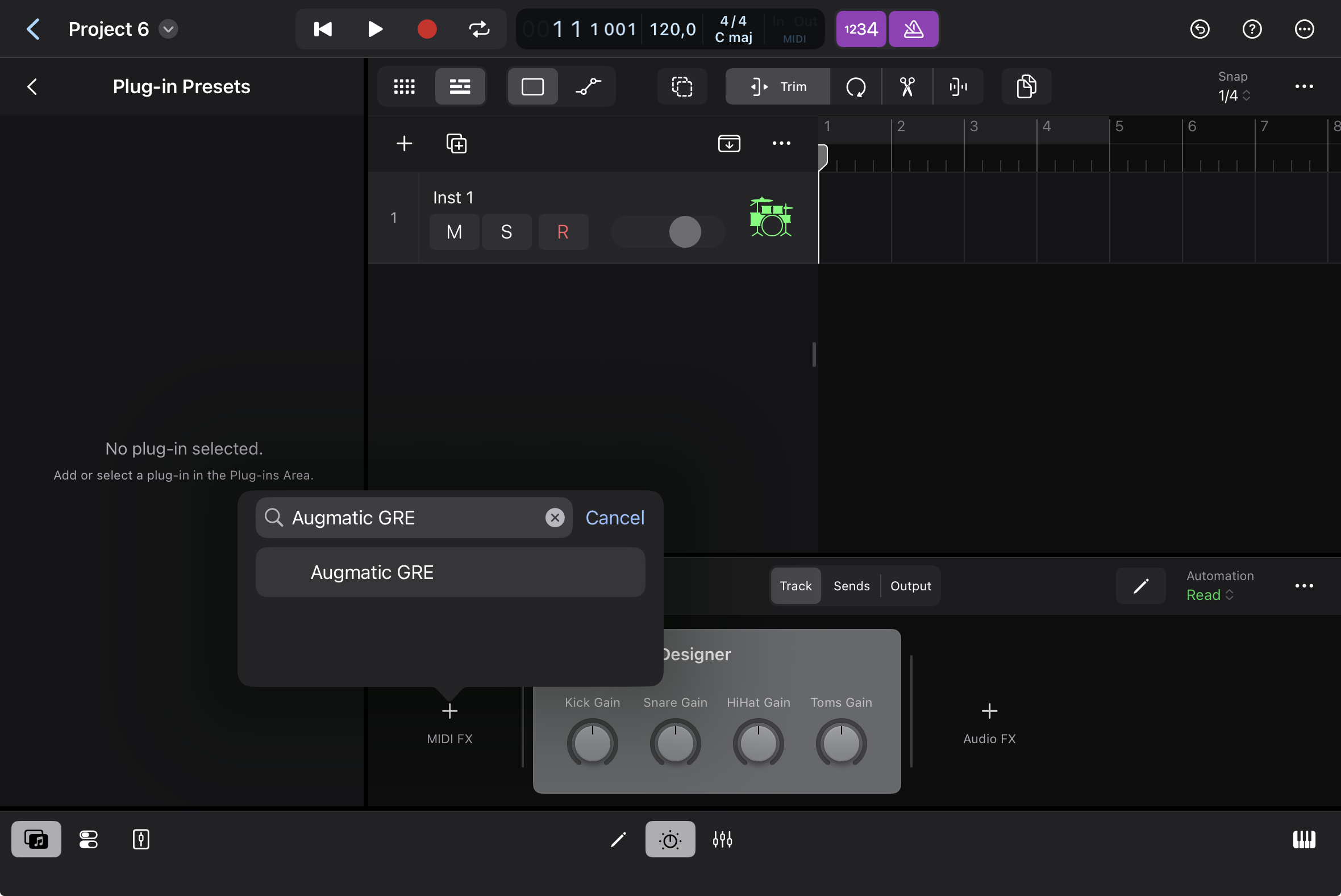 3. In Search on top, type the plugin name (for example Augmatic GRE) and select it.
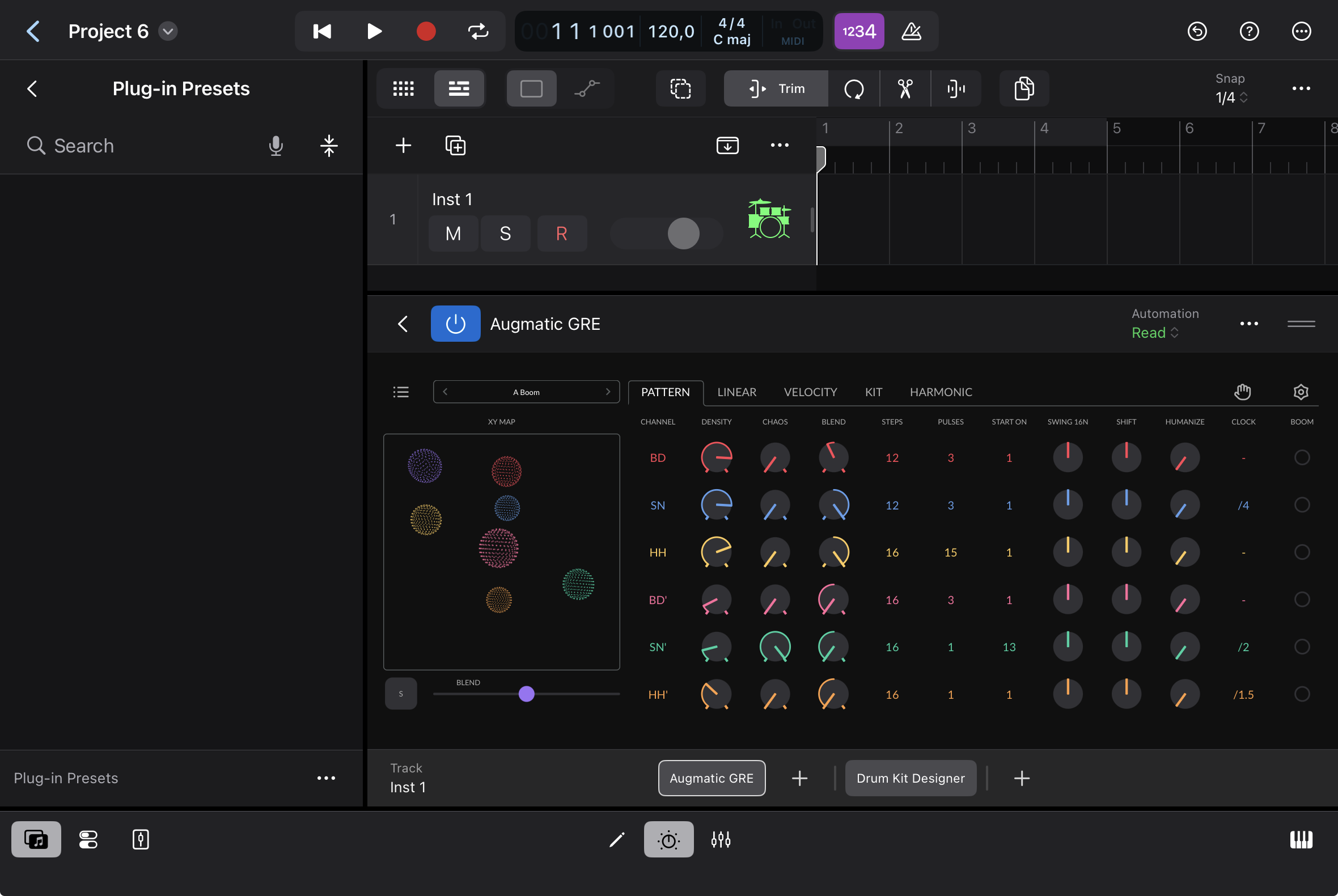 4. Open the Augmatic plugin and start playing.
Loopy Pro (iPad/iPhone)
Loopy Pro hosts the Augmatic plugin as an AUv3 MIDI effect, inserted in the MIDI chain ahead of the instrument it should drive.
Method A — MIDI effect on an instrument:
- Select the instrument widget (synth, sampler or AUv3 instrument) you want the Augmatic plugin to feed.
- Tap the … (three dots) on that instrument and choose Add MIDI Effect.
- Pick the Augmatic plugin from the AUv3 MIDI plugins list. It now sits before the instrument in the MIDI chain, so its generated notes play that instrument.
Method B — MIDI-only track (drive several instruments):
- Add a new track and set its Track Type to MIDI .
- Add the Augmatic plugin to this track.
- Use Loopy Pro's MIDI Routing matrix to send its output to one or more target instruments.
Reaper (Win/Mac)
Method A — Same track (simplest):
- On one track, add the Augmatic plugin, then the drum VSTi after it in the same FX chain. MIDI flows through automatically.
Method B — MIDI send between tracks (more flexible):
- Track 1 hosts the Augmatic plugin; Track 2 hosts the drum instrument.
- On Track 1, click the Route (IO) button → Add new send → select Track 2.
- Set Audio to None and MIDI to All → All.
This will play your drum patterns.
For VST3 you may need Map Reaper MIDI Buses to VST3 MIDI Buses in the plugin's I/O settings (pin/connector button → I/O).
Resources
- REAPER Official — Videos: REAPER tutorial index
- The REAPER Blog — Hardware MIDI Sends the better way
- Scaler Music — PDF: Scaler 3 MIDI Output DAW Routing Guide — page 7
- Plugin Boutique — External Instrument Routing Guide: Reaper 5
- Cockos Forum — Route MIDI item to other tracks
Studio One (Win/Mac)
Studio One routes MIDI between tracks with very little configuration.
- Add the Augmatic plugin to an Instrument track.
- Add the drum instrument on a second Instrument track.
- Expand that track's header to reveal the input/output assignments, and set its MIDI input to the Augmatic plugin track.
- Set the MIDI input channel to the right to match the output channel set in the Augmatic plugin.
- Enable monitoring on the recipient track; repeat for any additional instrument tracks.
This will play your drum patterns.
Resources
- Scaler Music — PDF: Scaler 3 MIDI Output DAW Routing Guide — page 8
MIDI Troubleshooting
- No sound: the Augmatic plugin generates MIDI notes and makes no sound of its own. Confirm its MIDI output is routed into a software instrument, and that the instrument track/channel is active and monitored.
- Notes not passing through: Make sure the Augmatic plugin is inserted as a MIDI effect / Audio Unit MIDI processor, not as an instrument, and that it sits before the instrument in the signal chain.
- Recording the raw notes instead of the pattern: Use the host's "record MIDI output" option (Logic Pro's Record MIDI to Track Here, Cubasis's Rec to track) to capture the Augmatic plugin's processed output.
Ableton Live (Win/Mac)
In Ableton Live, use VST only — in Live an AU plugin cannot send MIDI to another track.
Routing MIDI output to an instrument always requires two separate tracks. This is standard behavior in Ableton Live and not unique to the Augmatic plugin; all VST3 MIDI plugins operate this way:
- Load the Augmatic plugin on MIDI Track 1.
- Load a drum instrument on MIDI Track 2, e.g. Drum Rack.
- On Track 2, set MIDI From to 1-[the Augmatic plugin].
- In the menu below, change Post FX to [the Augmatic plugin].
- Set Track 2 Monitor to In.
Screeshots below show Augmatic GRE which works exactly the same.
Resources
- Ableton Official — Video: Accessing the MIDI output of a VST plugin
- Plugin Boutique — Video: External Instrument Routing Guide: Ableton Live
- Plugin Boutique — Video: Scaler 2 | VSTi Routing in Ableton Live | Quick Tip Tutorial.
- Music Rigs — MIDI Effect Plugin Routing in Ableton Live
- CodeFN42 — FAQ: MIDI Routing in Ableton Live
- Scaler Music — PDF: Scaler 3 MIDI Output DAW Routing Guide — page 5
Audiobus (iPad/iPhone)
- Select the MIDI section in Audiobus.
- Open the INPUT or EFFECT slot and select the Audio Units section.
- Choose the Augmatic plugin.
- Insert a MIDI receiver (your target instrument) in the OUTPUT slot so the Augmatic plugin's processed MIDI has somewhere to go.
AUM (iPad/iPhone)
- Create a MIDI channel and open the plugins list at the top.
- Choose the Audio Unit MIDI processor section and select the Augmatic plugin.
- Create an audio channel with an instrument, then open its MIDI settings panel.
- Open MIDI Routing from the top menu, select the Augmatic plugin to route its processed MIDI output to the instrument's MIDI input.
BeatMaker (iPad)
- On the bank where you want the Augmatic plugin, select the MIDI effects icon from the left panel.
- Select Add MIDI Effect.
- Load the Augmatic plugin from the MIDI effects list.
Bitwig Studio (Win/Mac)
Method A — Same track (simplest):
- Place the Augmatic plugin before the drum instrument in the same track's device chain.
Method B — Notes to Tracks:
- On the Augmatic plugin track, set the track output to Notes to Tracks → Tracks → [drum track].
Method C — Note Receiver:
- On the drum track, insert a Note Receiver device (Routing devices in the browser).
- Set its source to the Augmatic plugin track. Best when several tracks tap one source.
This will play your drum patterns.
Resources
- Bitwig Official — Routing Devices
- Plugin Boutique — Video: External Instrument Routing Guide: Bitwig Studio 2
- CodeFN42 — FAQ: MIDI Routing in Bitwig Studio
- Polarity — Video: Combine Bitwig's Drum Machine & 3rd Party VSTs
- Polarity — Video: Sending Signals Across Channels
- Scaler Music — PDF: Scaler 3 MIDI Output DAW Routing Guide — page 10
Cubase (Win/Mac)
- Load the Augmatic plugin on Instrument Track 1.
- Load the drum instrument on Instrument Track 2.
- On Track 2, open the Inspector → set Input Routing to the Augmatic plugin's MIDI output (e.g. "[the Augmatic plugin] - MIDI Output").
- Enable Monitor on Track 2; arm Track 1.
- Confirm MIDI Thru Active is on in Preferences → MIDI .
This will play your drum patterns.
Resources
- Plugin Boutique — External Instrument Routing Guide: Cubase 9
- CodeFN42 — FAQ: MIDI Routing in Cubase
- VI-Control — Cubase - VST MIDI Output Routing?
- Steinberg Forums — Routing in Cubase - Synth/Cthulhu/Scaler?
- Ask.Audio — 5 Pro Tips For Audio And MIDI Routing In Cubase.
- Scaler Music — PDF: Scaler 3 MIDI Output DAW Routing Guide page 8.
Cubasis (iPad/iPhone)
- On the track where you want the Augmatic plugin, select MIDI effects from the left panel.
- Choose the Augmatic plugin from the list.
- (Optional) To record the processed MIDI output instead of the notes you play in, tap the Rec to track button at the top right of the plugin window.
FL Studio (Win/Mac)
Method A — Patcher:
- Load Patcher as a channel instrument.
- Inside Patcher, add the Augmatic plugin and the target drum instrument.
- Drag the turquoise (MIDI) wire from the Augmatic plugin's output to the instrument's input.
Method B — Wrapper port routing (third-party VSTs only):
- In the Augmatic plugin's wrapper (cog icon), set MIDI Output Port to a number (e.g. 1).
- On the receiving drum VST, set MIDI Input Port to the same number.
Resources
- Scaler Music — PDF: Scaler 3 MIDI Output DAW Routing Guide — FL Studio section, page 9; most comprehensive (2025).
- Plugin Boutique — External Instrument Routing Guide: FL Studio — Patcher method; recommends VST2.
- Image-Line — Video: Patcher Tutorial — how the MIDI/audio/parameter wires work.
- CodeFN42 — FAQ: MIDI Routing in FL Studio — wrapper-port method with screenshots.
- Image-Line Forum — Routing MIDI From Plugin to Internal Instrument — confirms Patcher is required for native plugins.
Drambo (iPad/iPhone)
In Drambo you wire MIDI the same way you wire audio — through MIDI ports, not a special menu. Place the Augmatic plugin between a MIDI source and your instrument track.
- Create a MIDI track for the Augmatic plugin: tap + Track → MIDI Track (not Audio).
- On that track, tap + Module, open the MIDI category and add the Augmatic plugin (its AUv3). It appears in the signal chain.
- At the end of the chain, add a MIDI To module (MIDI → Output) and set its Destination Track to your instrument track.
- The instrument track auto-receives when you use MIDI To; otherwise set that track's Input to the Augmatic plugin track.
Signal flow: MIDI In → Augmatic plugin → MIDI To → Instrument Track. You can chain more MIDI modules after it, or add several MIDI To modules to drive multiple instrument tracks.
Logic Pro (Mac)
Logic Pro loads the Audio Unit v2 as a MIDI effect on the instrument's own track.
- On the track where you want the Augmatic plugin, select MIDI FX from the channel strip.
- Choose the Augmatic plugin from the list of Audio Units plugins.
- (Optional) Since Logic 10.7.5, to record the MIDI output processed by the Augmatic plugin instead of the notes you play in, select Record MIDI to Track Here below the list of MIDI effects.
On Mac, this will play your drum patterns.
Logic Pro (iPad/iPhone)
After opening the project, make sure all tracks are armed for recording.
- Create New Project → Tracks → Create New Track → MIDI → ... → Drum Kit Designer.
- On the same track, select + MIDI FX, on the left of Drum Kit Designer.
- In Search on top, type the plugin name (for example Augmatic GRE) and select it.
- Open the Augmatic plugin and start playing.
Loopy Pro (iPad/iPhone)
Loopy Pro hosts the Augmatic plugin as an AUv3 MIDI effect, inserted in the MIDI chain ahead of the instrument it should drive.
Method A — MIDI effect on an instrument:
- Select the instrument widget (synth, sampler or AUv3 instrument) you want the Augmatic plugin to feed.
- Tap the … (three dots) on that instrument and choose Add MIDI Effect.
- Pick the Augmatic plugin from the AUv3 MIDI plugins list. It now sits before the instrument in the MIDI chain, so its generated notes play that instrument.
Method B — MIDI-only track (drive several instruments):
- Add a new track and set its Track Type to MIDI .
- Add the Augmatic plugin to this track.
- Use Loopy Pro's MIDI Routing matrix to send its output to one or more target instruments.
Reaper (Win/Mac)
Method A — Same track (simplest):
- On one track, add the Augmatic plugin, then the drum VSTi after it in the same FX chain. MIDI flows through automatically.
Method B — MIDI send between tracks (more flexible):
- Track 1 hosts the Augmatic plugin; Track 2 hosts the drum instrument.
- On Track 1, click the Route (IO) button → Add new send → select Track 2.
- Set Audio to None and MIDI to All → All.
This will play your drum patterns.
For VST3 you may need Map Reaper MIDI Buses to VST3 MIDI Buses in the plugin's I/O settings (pin/connector button → I/O).
Resources
- REAPER Official — Videos: REAPER tutorial index
- The REAPER Blog — Hardware MIDI Sends the better way
- Scaler Music — PDF: Scaler 3 MIDI Output DAW Routing Guide — page 7
- Plugin Boutique — External Instrument Routing Guide: Reaper 5
- Cockos Forum — Route MIDI item to other tracks
Studio One (Win/Mac)
Studio One routes MIDI between tracks with very little configuration.
- Add the Augmatic plugin to an Instrument track.
- Add the drum instrument on a second Instrument track.
- Expand that track's header to reveal the input/output assignments, and set its MIDI input to the Augmatic plugin track.
- Set the MIDI input channel to the right to match the output channel set in the Augmatic plugin.
- Enable monitoring on the recipient track; repeat for any additional instrument tracks.
This will play your drum patterns.
Resources
- Scaler Music — PDF: Scaler 3 MIDI Output DAW Routing Guide — page 8
MIDI Troubleshooting
- No sound: the Augmatic plugin generates MIDI notes and makes no sound of its own. Confirm its MIDI output is routed into a software instrument, and that the instrument track/channel is active and monitored.
- Notes not passing through: Make sure the Augmatic plugin is inserted as a MIDI effect / Audio Unit MIDI processor, not as an instrument, and that it sits before the instrument in the signal chain.
- Recording the raw notes instead of the pattern: Use the host's "record MIDI output" option (Logic Pro's Record MIDI to Track Here, Cubasis's Rec to track) to capture the Augmatic plugin's processed output.